
Console Logging
The App Log Viewer can be a helpful tool for diagnosing QGroundControl problems. It can be found in Application Settings > App Log Viewer.
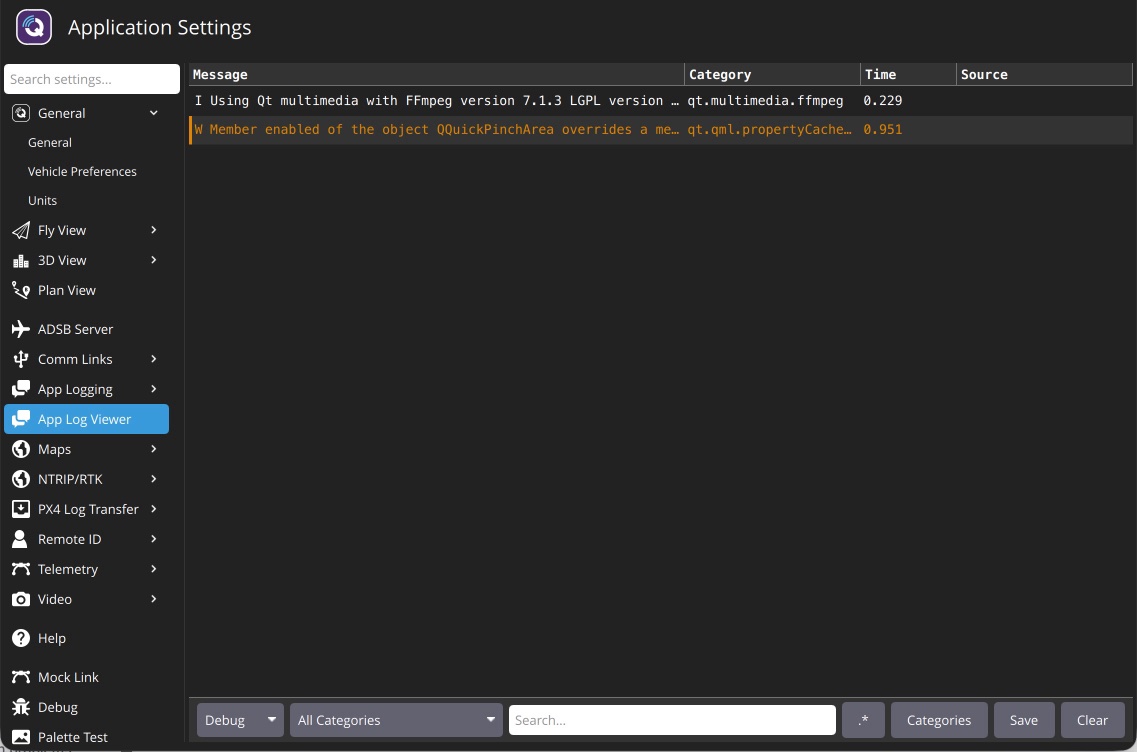
Click the Categories button to enable/disable the logging categories displayed by QGroundControl.
Common Logging Categories
The most commonly used logging categories are listed below.
| Category(s) | Description |
|---|---|
Comms.LinkManager, Vehicle.MultiVehicleManager | Debug connection problems. |
Comms.LinkManager:verbose | Debug serial ports not being detected. Very noisy continuous output of available serial ports. |
VehicleSetup.FirmwareUpgrade | Debug firmware flash issues. |
FactSystem.ParameterManager | Debug parameter load problems. |
FactSystem.ParameterManager:debugCacheFailure | Debug parameter cache crc misses. |
PlanManager.PlanManager, PlanManager.MissionManager, PlanManager.GeoFenceManager, PlanManager.RallyPointManager | Debug Plan upload/download issues. |
AutoPilotPlugins.RadioComponentController | Debug Radio calibration issues. |
Logging from the Command Line
An alternate mechanism for logging is using the --logging command line option. This is handy if you are trying to get logs from a situation where QGroundControl crashes.
Two options work together:
--logging:full(or--logging:<comma-separated categories>) enables the logging categories.--log-outputwrites the log messages to stderr (the terminal on macOS/Linux). Without it, messages are only visible in the App Log Viewer and the AppLog.log file in the application log directory.
How you do this and where the traces are output vary by OS:
Windows
Open a command prompt and run QGroundControl from its install location (the installer default is shown below). Because QGroundControl is a GUI application it has no console window, so stderr isn't displayed — redirect it to a file to capture it:
shcd "%ProgramFiles%\QGroundControl\bin" QGroundControl --logging:full --log-output > "%USERPROFILE%\qgc_log.txt" 2>&1
macOS
You must run QGroundControl from Terminal. The Terminal app is located in Applications/Utilities. Once Terminal is open paste the following into it:
shcd /Applications/QGroundControl.app/Contents/MacOS ./QGroundControl --logging:full --log-outputLog traces will output to the Terminal window.
Linux
Run the AppImage from a terminal:
sh./QGroundControl-<arch>.AppImage --logging:full --log-outputLog traces will output to the shell you are running from.